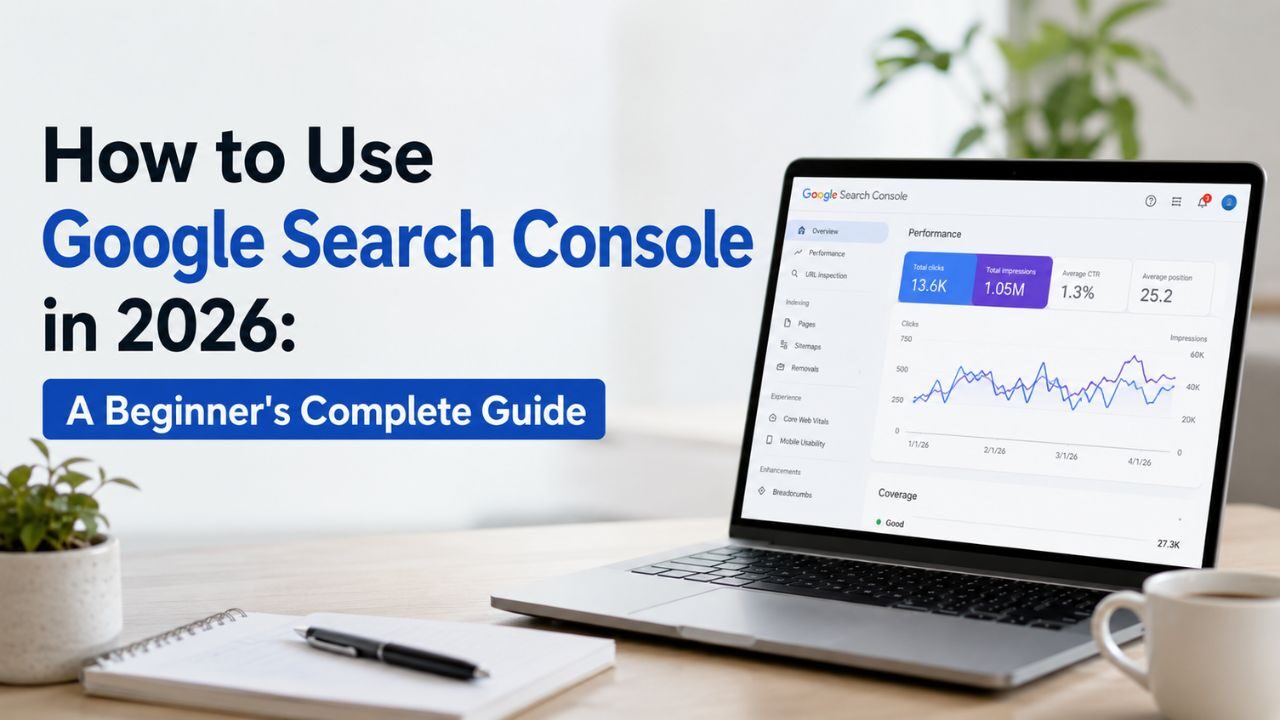
If you’re running a website and not using Google Search Console, you’re making SEO decisions without data.
Google Search Console (GSC) is the single most important free tool in SEO – more useful than any paid platform for understanding how Google specifically sees your site. It tells you which pages are indexed, which keywords you’re ranking for, which pages have problems, and exactly where your organic traffic is coming from.
And yet a surprising number of Indian businesses either haven’t set it up, or have it set up but barely look at it.
This Google Search Console guide 2026 covers everything – from initial setup through the key reports you should be checking every month – in plain language that actually makes sense.
What Is Google Search Console and Why Do You Need It?
Google Search Console is a free tool from Google that lets you monitor, manage, and troubleshoot your website’s presence in Google Search. It’s not a traffic analytics tool – that’s Google Analytics. GSC is specifically about your relationship with Google’s crawler and index.
Here’s what GSC tells you that Google Analytics cannot:
- Which keywords your pages rank for in Google Search
- How many impressions and clicks each page receives from search
- Which pages Google has indexed and which it hasn’t
- Why specific pages are not appearing in search results
- Core Web Vitals scores based on real user data
- Mobile usability issues Google has detected
- Security problems and manual actions against your site
In 2026, GSC has become even more important because it now surfaces data about your site’s eligibility for AI Overviews – the AI-generated summaries at the top of Google Search results. Understanding your indexing quality and page experience scores directly affects your chances of appearing in AI-generated answers.
Step 1: Setting Up Google Search Console
Create or Sign Into Your Google Account
Go to search.google.com/search-console and sign in with a Google account. Use the same Google account you use for Google Analytics – this makes linking the two tools easier.
Add Your Property
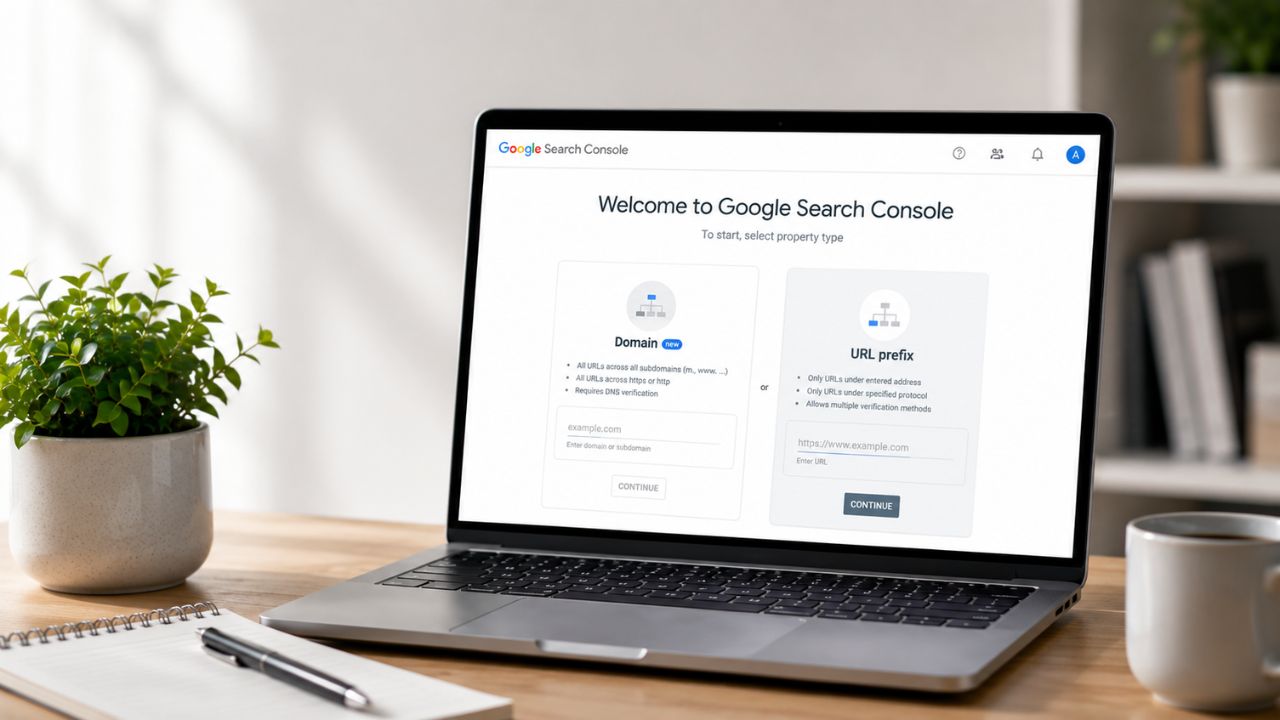
Click Add Property and choose between two property types:
Domain property (recommended): Covers all subdomains and protocols (www, non-www, HTTP, HTTPS) under a single property. Requires DNS verification through your domain registrar. This is the correct choice for most websites.
URL prefix property: Covers only the specific URL you enter. Easier to verify but only tracks that exact version of your URL. Use this if you can’t access your DNS settings.
For most Indian business websites: add yourdomain.com as a Domain property.
Verify Ownership
DNS verification (for Domain property):
- Copy the TXT record Google provides
- Log into your domain registrar (GoDaddy, Namecheap, BigRock, Hostinger etc.)
- Go to DNS settings → Add a TXT record
- Paste the TXT record and save
- Return to Search Console and click Verify
Verification typically takes a few minutes. Once verified, Google begins collecting data – but it takes 24–48 hours for the first data to appear and 2–3 days for a more complete picture.
Step 2: Submit Your Sitemap
After verifying your property, submit your XML sitemap. This tells Google which pages exist on your site and should be crawled.
Go to Sitemaps in the left navigation → Enter your sitemap URL → Click Submit.
For most WordPress sites using Yoast SEO or Rank Math, your sitemap is at: yourdomain.com/sitemap_index.xml
After submission, Search Console shows how many URLs were submitted vs. how many Google indexed. A large gap between submitted and indexed URLs is a diagnostic signal – investigate why Google isn’t indexing those pages.
The Key Reports: What to Check and When
Performance Report – Your Most-Used Report
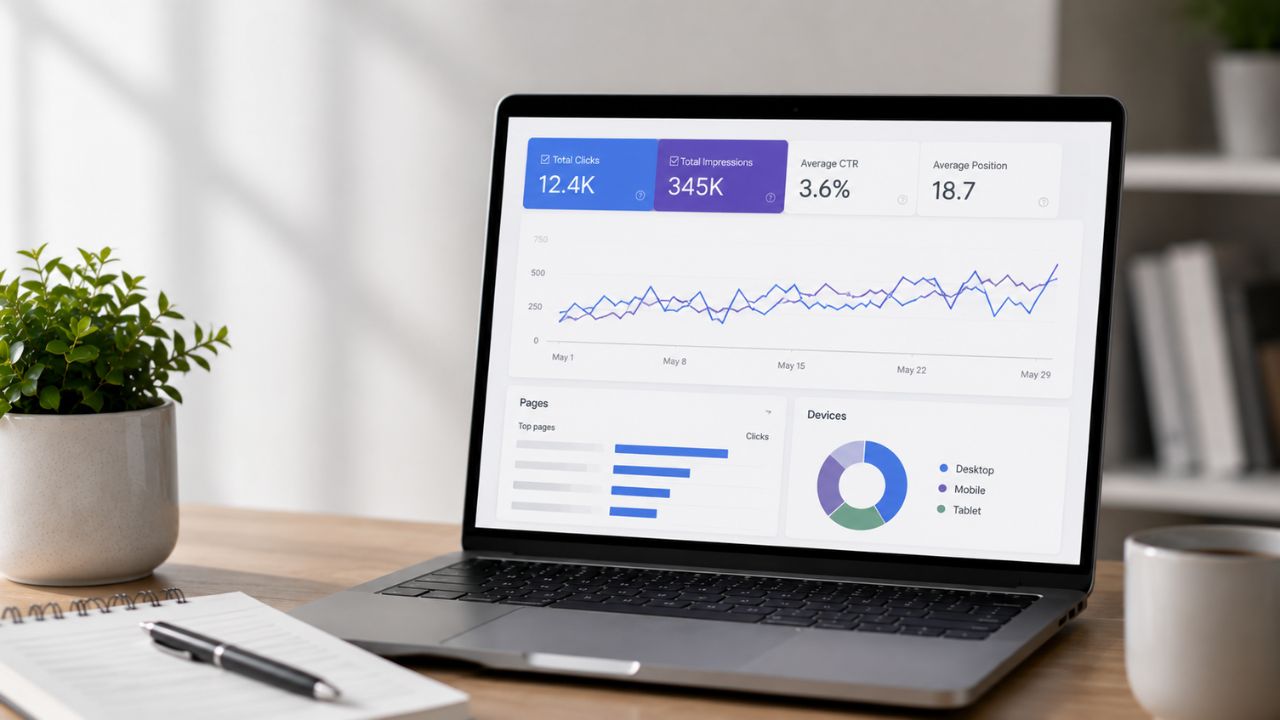
Go to Search results under Performance. This is the report you’ll use most.
What it shows:
- Total clicks – how many times users clicked through to your site from Google Search
- Total impressions – how many times your site appeared in search results (even without a click)
- Average CTR – clicks divided by impressions, expressed as a percentage
- Average position – your average ranking position across all queries
The most useful view: Click on the Queries tab to see every keyword your site ranks for. Sort by Impressions to see where you have visibility without clicks (CTR improvement opportunities). Sort by Position to identify keywords stuck just outside the top 10.
Search Console SEO Tips from the Performance Report:
- High impressions, low CTR → your page is ranking but not compelling people to click → improve your title tag and meta description
- Position 11–20 → you’re just off page 1 → strengthen these pages with better content and internal links
- Queries you didn’t know about → unexpected keyword opportunities worth building dedicated content around
- Branded vs non-branded breakdown → filter by brand name queries vs. everything else to understand how much of your traffic is discovery vs. recognition
Pages Report – Your Indexing Diagnostic
Go to Indexing → Pages. This is your second most important report.
The Pages report shows every URL Google has encountered, split into Indexed and Not indexed with specific reasons for non-indexed pages.
Critical statuses to watch:
- “Crawled – currently not indexed” → Google crawled the page but didn’t include it in the index – typically a content quality issue
- “Duplicate without user-selected canonical” → Google found duplicate URLs and you haven’t specified which to index
- “Blocked by robots.txt” → pages you may be accidentally blocking from Google
- “Page with redirect” → pages in your sitemap that are redirected (clean these from your sitemap)
- “Not found (404)” → broken URLs Google tried to crawl
Check this report monthly. A sudden increase in non-indexed pages or a drop in total indexed pages is an early warning sign of a technical problem.
Core Web Vitals Report
Go to Experience → Core Web Vitals. This shows your site’s performance on LCP, INP, and CLS – measured from real Chrome user data.
Pages are grouped into Good, Needs Improvement, and Poor buckets. Click any bucket to see which specific pages are affected and which metric is failing.
Why this matters in 2026: Core Web Vitals are a confirmed Google ranking signal. Poor scores disadvantage your pages in competitive search results. Fix Poor pages first – especially your highest-traffic landing pages.
Mobile Usability Report
Go to Experience → Mobile Usability. Any pages flagged here have specific problems Google detected on mobile – the primary version Google uses for crawling and ranking.
Common errors: text too small to read, clickable elements too close together, viewport not configured correctly.
Manual Actions and Security Issues
Go to Security & Manual Actions. If anything appears here, it requires immediate attention.
A manual action means a human reviewer at Google has penalised your site for a policy violation – this causes significant ranking drops and must be resolved before rankings recover.
Security issues mean Google has detected malware, phishing content, or other harmful elements on your site.
For most well-maintained Indian business websites, these sections will show “No issues detected.” But check them monthly – you want to catch anything here before Google updates your search appearance.
GSC Tutorial 2026: The URL Inspection Tool
The URL Inspection tool is one of GSC’s most powerful features. Enter any URL from your site and see exactly what Google knows about it.
What it shows for any URL:
- Whether the page is indexed
- The last crawl date and crawl status
- Which canonical URL Google has chosen (may differ from what you specified)
- Mobile usability status for that page
- Any detected issues
The most important button: “Request Indexing.” After publishing a new page or making significant changes to an existing one, use this to ask Google to crawl it immediately rather than waiting for the next regular crawl cycle. This can reduce indexing time from weeks to hours.
“Test Live URL” shows you the current state of the page – what Google would see if it crawled right now, not what’s cached from the last crawl.
How to Use Google Search Console for Monthly SEO Reviews
Set up a monthly GSC review routine using this checklist:
Performance:
- Are clicks and impressions trending up or down vs. last month?
- Any new keywords appearing with significant impressions?
- Any existing keywords dropping significantly in position?
Indexing:
- Has the total indexed page count changed significantly?
- Are there new non-indexed pages with fixable reasons?
- Any new 404 errors or redirect issues?
Core Web Vitals:
- Any new pages moved to “Poor” status?
- Has the “Good” URL count increased after recent fixes?
Manual Actions / Security:
- No issues → move on
- Any issue detected → treat as urgent and address immediately
This monthly habit – taking no more than 30 minutes – gives you an ongoing picture of your site’s health in Google Search.
The Bottom Line
Google Search Console is not optional for any Indian business that cares about organic search. It’s free, it’s built by Google, and it shows you things about your site’s search performance that no other tool can.
The businesses winning in Indian organic search in 2026 are the ones paying attention to this data – not guessing.
Want BeSky Marketing to Set Up and Manage Your Search Console?
Frequently Asked Questions (FAQs)
Q1. Is Google Search Console completely free?
Yes, Google Search Console is 100% free. Any website owner can access all features with no paid plan or hidden costs.
Q2. How long does data take to appear in Google Search Console?
Initial data appears within 24–48 hours, while full performance insights may take 3–7 days. Some reports like Core Web Vitals need more time.
Q3. Google Search Console vs Google Analytics: What’s the difference?
Google Search Console tracks search performance and indexing, while Google Analytics tracks website user behaviour and conversions.
Q4. How can Google Search Console improve rankings?
Use GSC to find low CTR keywords, pages ranking 11–20, indexing issues, and Core Web Vitals problems to boost SEO performance.
Q5. Can Google Search Console help with AI Overview visibility in 2026?
Yes, GSC helps improve indexing, site speed, and technical SEO, increasing your chances of appearing in AI Overviews.
