
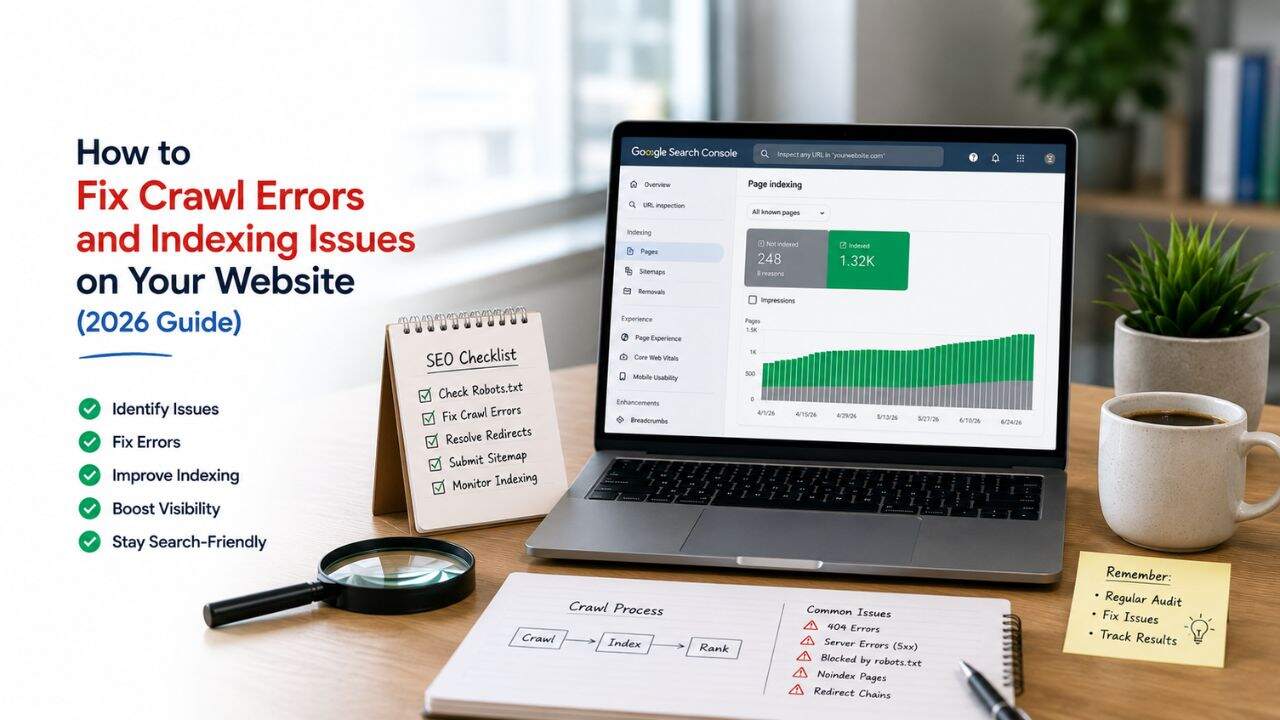
You’ve written the blog posts. You’ve built the pages. But when you search Google for your content – it’s not there.
Or worse: some pages rank, some don’t, and you can’t figure out why.
Crawl errors and indexing issues are among the most damaging – and most invisible – problems in SEO. Unlike a broken design or a slow homepage, they don’t announce themselves. Your site looks fine to visitors. But to Google, something is wrong, and pages that should be ranking simply aren’t being found, crawled, or included in the index.
This guide breaks down exactly how to fix crawl errors indexing issues 2026 – what each error type means, where to find them, and how to resolve them.
Why Google Not Indexing Your Pages Is a Serious Problem
Let’s establish the stakes. If Google hasn’t indexed a page, that page cannot rank. It doesn’t matter how well-written or keyword-optimised it is. A page outside Google’s index is invisible in search.
In 2026, this matters even more because Google’s AI Overviews pull from indexed, crawlable content. A page with an indexing issue isn’t just missing from blue-link results – it’s excluded from AI-generated summaries too. Fixing indexing issues is the prerequisite for everything else in SEO.
Step 1: Your Diagnostic Starting Point – Google Search Console
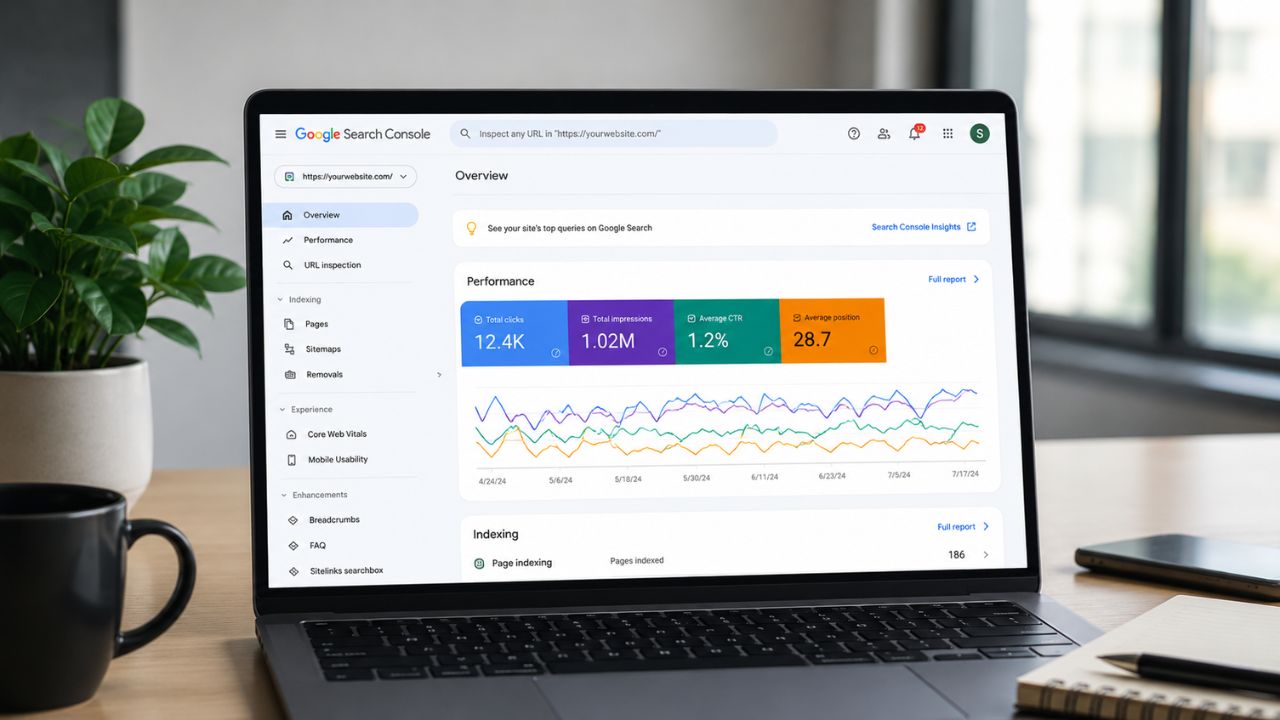
Everything starts in Google Search Console. If you don’t have it set up, that’s the first fix – verify your site at search.google.com/search-console and submit your sitemap.
The Pages Report
Go to Indexing → Pages in Search Console. This shows you every URL Google has encountered, split into two categories:
- Indexed pages – pages Google has crawled and included in its index
- Not indexed pages – pages Google found but chose not to index (with specific reasons listed)
The “Not indexed” section is your primary diagnostic tool. Every reason listed there is a separate issue type with a separate fix.
The Coverage Trend
Look at whether your indexed page count is growing, stable, or declining over time. A sudden drop in indexed pages often indicates a technical change – a mis-deployed robots.txt, an accidental noindex tag added by a plugin update, or a site migration gone wrong.
Step 2: Understanding the Most Common Indexing Issues
1. Crawled – Currently Not Indexed
Google crawled the page but didn’t index it, often due to thin, duplicate, or low-value content. Improve content quality and add unique information.
2. Discovered – Currently Not Crawled
Google knows the page exists but hasn’t crawled it yet. Add internal links and improve site structure to increase crawl priority.
3. Not Found (404)
Google tried to access a page that doesn’t exist. Restore the page, add a 301 redirect, or fix broken links.
4. Redirect Error
Google found broken or multiple redirects (redirect chains). Fix them by using single-step redirects.
5. Soft 404
The page loads but has little or no useful content. Add meaningful content, redirect it, or noindex the page.
6. Blocked by robots.txt
Your robots.txt file is blocking Google access. Remove unnecessary restrictions on pages you want indexed.
7. Noindex Tag
A noindex tag tells Google not to index the page. Remove it from important pages in your SEO plugin or page settings.
Step 3: URL Inspection Google 2026 – Page-Level Diagnosis
For any specific URL you’re concerned about, use the URL Inspection Tool inside Search Console.
Enter the URL and you’ll see:
- Whether Google has indexed the page
- The last crawl date and crawl status
- Any detected issues (noindex, blocked, redirect, etc.)
- The page’s canonical as Google sees it
- Mobile usability status for that URL
The most useful function: “Request Indexing.” After fixing an issue on a specific page, use this to ask Google to recrawl it immediately rather than waiting for Google’s regular crawl cycle. This can accelerate indexing from weeks to days.
How to Use URL Inspection for Diagnosis
- Enter the problematic URL in the search bar at the top of Search Console
- Click “Test Live URL” – this shows the current state of the page right now, not Google’s cached data
- Check the Coverage section for the specific indexing status
- Check Page fetch to see if Googlebot can successfully render the page
- Look at the Canonical section – if Google has chosen a different canonical than what you specified, that’s why your page isn’t being indexed as expected
Step 4: Google Crawl Errors Fix – Sitemap and Robots.txt Audit
Sitemap Issues
Your XML sitemap should be a clean list of every page you want indexed. Common sitemap problems:
- Including 404 pages or redirected URLs in the sitemap
- Including noindexed pages in the sitemap (contradictory signals confuse Google)
- Outdated sitemap not updated when pages are added or removed
- Sitemap not submitted in Search Console
The fix: Audit your sitemap by visiting yourdomain.com/sitemap.xml. Every URL in it should return a 200 status and be a page you actively want indexed. Use a plugin like Yoast or Rank Math on WordPress to auto-generate and update your sitemap.
robots.txt Best Practices
A clean robots.txt for most Indian business websites looks like this:
User-agent: *
Disallow: /wp-admin/
Allow: /wp-admin/admin-ajax.php
Sitemap: https://yourdomain.com/sitemap.xml
Anything beyond blocking admin areas should be carefully considered. Never disallow your CSS or JavaScript files – Google needs these to render your pages correctly and assess their quality.
Step 5: Internal Linking and Architecture Fixes
Many indexing issues aren’t about technical errors at all – they’re about architecture. Google prioritises crawling pages it discovers through internal links from authoritative pages.
Orphan pages – pages with no internal links pointing to them – are frequently not crawled or indexed simply because Google never encounters them through its normal link-following crawl. Even if they’re in your sitemap.
Fix Orphan Pages
Use a crawl tool (Screaming Frog free for up to 500 URLs, Ahrefs, or Sitebulb) to identify pages with zero internal links. Then:
- Add contextual internal links from relevant existing pages
- Include the page in your navigation or footer if appropriate
- Link to it from your most-crawled, most-linked pages first
The rule of thumb: if a page matters enough to exist, it matters enough to have at least 2–3 internal links pointing to it.
Indexing Issues SEO: A Prioritised Fix Order
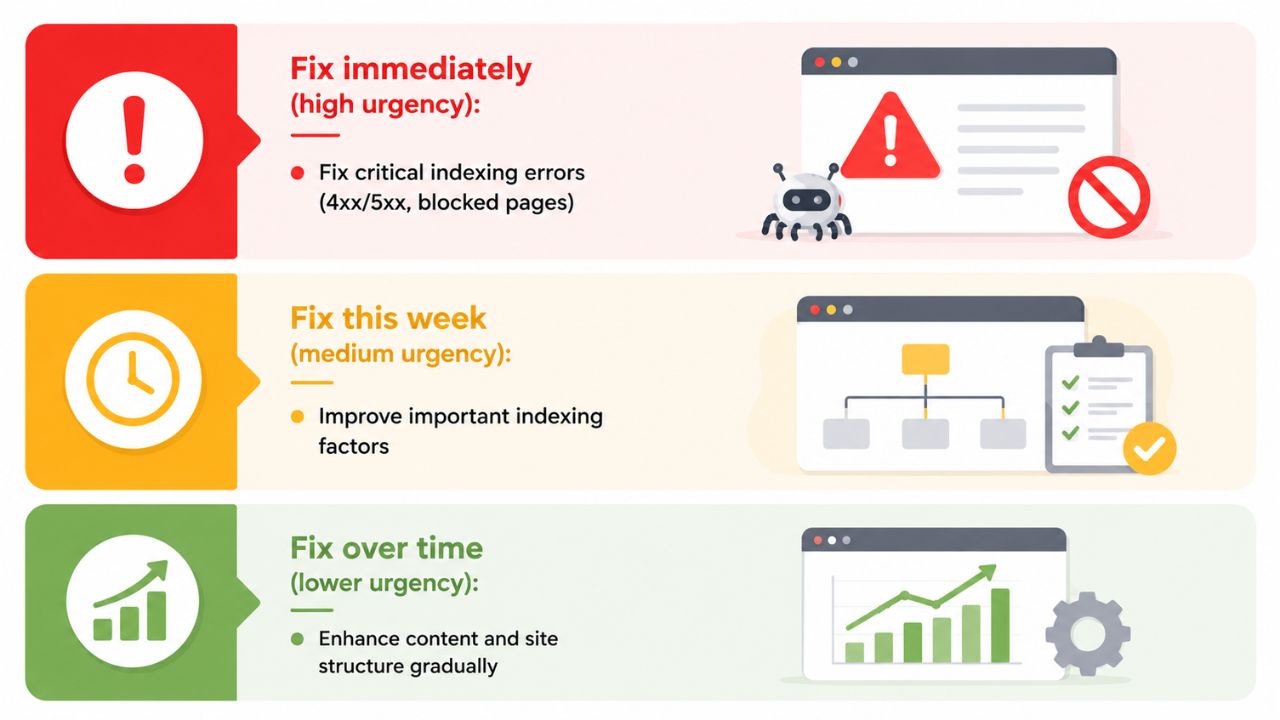
Not all indexing issues are equal. Work through them in this order:
Fix immediately (high urgency):
- Entire site blocked by robots.txt or site-wide noindex
- 301 redirect chains on your most important pages
- 404 errors on pages with external backlinks
Fix this week (medium urgency):
- Soft 404s on key landing pages
- “Discovered – currently not crawled” on important content
- Sitemap containing noindexed or redirected URLs
Fix over time (lower urgency):
- Thin content flagged as “Crawled – currently not indexed”
- Orphan pages receiving no internal links
- Archive/tag pages with low content value
The Bottom Line
Crawl errors and indexing issues are silent killers of SEO performance. They’re invisible to users and easy to overlook – but their impact on rankings is immediate and significant.
A well-indexed site is the foundation on which all other SEO work builds. Get this right first.
Want BeSky Marketing to Audit Your Crawl and Indexing Issues?
Frequently Asked Questions (FAQs)
Q1. Why are my pages not showing in Google search?
Common reasons include noindex tags, crawl issues, robots.txt blocks, or low-quality content. Use Google Search Console URL Inspection to find the exact issue.
Q2. How long does Google take to index a new page?
Indexing can take hours to weeks depending on your website authority. Speed it up by submitting a sitemap and requesting indexing in Search Console.
Q3. What is the difference between a crawl error and an indexing error?
A crawl error means Google can’t access the page. An indexing error means Google crawled it but chose not to include it in search results.
Q4. How do I check if a page is indexed by Google?
Use Google Search Console URL Inspection or search site:yourdomain.com/page-url in Google to check indexing status.
Q5. Can too many pages hurt my website indexing?
Yes, too many low-quality or duplicate pages can waste crawl budget and slow indexing of important pages.
